How to Implement Notion as a CMS for Your Next.js Blog
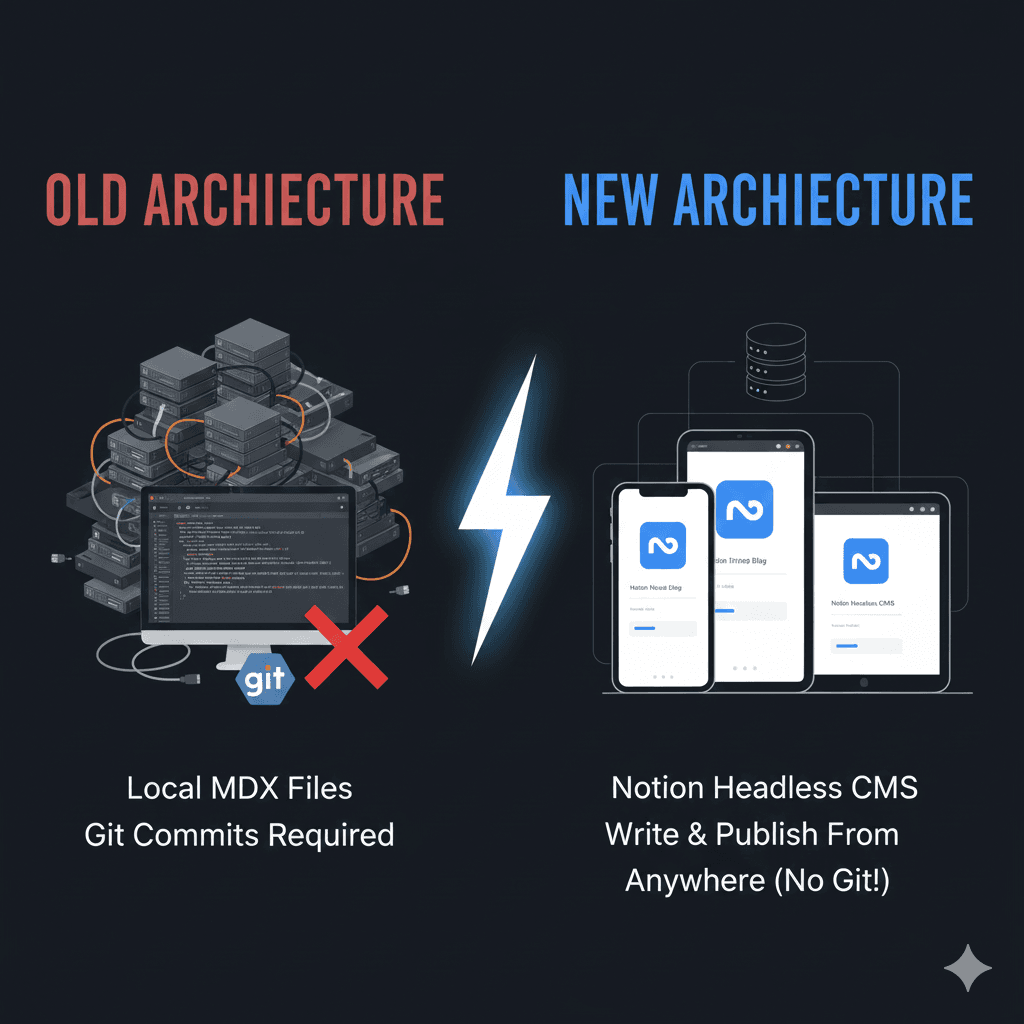
I recently transformed the architecture of this blog by migrating from local MDX files to Notion as a Headless CMS. The result? I can now write and publish posts from anywhere—my phone, tablet, or any device with a browser. No Git commits required.
In this guide, I'll walk you through exactly how to implement Notion as a CMS for your Next.js blog, complete with code examples and a migration script to move your existing content.
Why Notion as a CMS?
Before we dive into the how, let's talk about the why:
- Write anywhere: Notion's apps work seamlessly across all devices
- Rich editor: Beautiful writing experience with all the formatting you need
- No database costs: Your content lives in Notion's infrastructure
- Familiar interface: If you already use Notion, there's zero learning curve
- Collaboration: Easy to share drafts with editors or reviewers
- Free tier: Notion's API is free for personal use
The Architecture
The setup is surprisingly simple and leverages Next.js's static generation capabilities:
- Notion Database: Acts as your content store with structured properties
- Notion API: Provides programmatic access to your database
- Next.js: Fetches data at build time with Incremental Static Regeneration (ISR)
- notion-to-md: Converts Notion's block format to Markdown
Here's the data flow:
Notion Database → Notion API → Next.js (Build/ISR) → Your Blog
Step 1: Setting Up Notion
Create a Notion Integration
- Go to Notion My Integrations
- Click + New integration
- Name it something like "My Blog CMS"
- Select the workspace where your blog database will live
- Copy the Internal Integration Secret (this is your
NOTION_API_KEY)
Create Your Blog Database
Create a new database in Notion with these exact property names and types:
| Property Name | Type | Required | Description |
|---|---|---|---|
| Name | Title | Yes | The blog post title |
| Slug | Rich Text | Yes | URL-friendly identifier (e.g., my-awesome-post) |
| Date | Date | Yes | Publication date |
| Category | Select | Yes | Post category (Tech, Travel, etc.) |
| Author | Rich Text | Yes | Author name |
| Excerpt | Rich Text | Yes | Short summary for post cards |
| FeaturedImage | Files & Media | No | Cover image URL or upload |
Share the Database with Your Integration
- Open your database page in Notion
- Click the
⋯(three dots) in the top right - Select Connect to
- Search for and select your integration
Get Your Database ID
The Database ID is in the URL when viewing your database:
<https://www.notion.so/workspace/[DATABASE_ID]?v=>...
                              ^^^^^^^^^^^^^^^^^^^^
Copy everything between the workspace name and the ?v= part.
Step 2: Installing Dependencies
Install the required npm packages:
npm install @notionhq/client notion-to-md
# or
pnpm add @notionhq/client notion-to-md
For the migration script (if you have existing content):
npm install --save-dev @tryfabric/martian gray-matter dotenv
Step 3: Environment Variables
Create or update your .env.local file:
NOTION_API_KEY=secret_your_integration_secret_here
NOTION_DATABASE_ID=your_database_id_here
Important: Add these same variables to your deployment platform (Vercel, Netlify, etc.).
Step 4: Creating the Notion Client
Create a new file src/lib/notion.ts:
import { Client } from '@notionhq/client'
import { NotionToMarkdown } from 'notion-to-md'
import { BlogPost } from '@/types/blog'

const notion = new Client({
  auth: process.env.NOTION_API_KEY,
})

const n2m = new NotionToMarkdown({ notionClient: notion })

// Helper to clean up database ID from URL or query params
const getDatabaseId = () => {
  let id = process.env.NOTION_DATABASE_ID
  if (!id) return ''
  if (id.includes('notion.so/')) {
    const parts = id.split('/')
    id = parts[parts.length - 1].split('?')[0]
  } else {
    id = id.split('?')[0]
  }
  return id
}

const DATABASE_ID = getDatabaseId()

// Fetch all posts (for list pages and RSS)
export async function getAllPostsFromNotion(): Promise<BlogPost[]> {
  if (!DATABASE_ID) return []

  const response = await notion.databases.query({
    database_id: DATABASE_ID,
    sorts: [
      {
        property: 'Date',
        direction: 'descending',
      },
    ],
    filter: {
      property: 'Slug',
      rich_text: {
        is_not_empty: true,
      },
    },
  })

  const posts = response.results.map((page: any) => {
    const props = page.properties
    return {
      slug: props.Slug?.rich_text[0]?.plain_text || '',
      title: props.Name?.title[0]?.plain_text || 'Untitled',
      date: props.Date?.date?.start || new Date().toISOString(),
      category: props.Category?.select?.name || 'Uncategorized',
      author: props.Author?.rich_text[0]?.plain_text || 'Admin',
      excerpt: props.Excerpt?.rich_text[0]?.plain_text || '',
      content: '', // We don't fetch content for list view (performance)
      featuredImage: props.FeaturedImage?.url
        ? { url: props.FeaturedImage.url, title: '' }
        : undefined,
    }
  })

  return posts
}

// Fetch a single post with full content
export async function getPostBySlugFromNotion(slug: string): Promise<BlogPost | null> {
  if (!DATABASE_ID) return null

  const response = await notion.databases.query({
    database_id: DATABASE_ID,
    filter: {
      property: 'Slug',
      rich_text: {
        equals: slug,
      },
    },
  })

  if (response.results.length === 0) {
    return null
  }

  const page = response.results[0] as any
  const props = page.properties

  // Convert Notion blocks to Markdown
  const mdblocks = await n2m.pageToMarkdown(page.id)
  const mdString = n2m.toMarkdownString(mdblocks)

  return {
    slug: props.Slug?.rich_text[0]?.plain_text || slug,
    title: props.Name?.title[0]?.plain_text || 'Untitled',
    date: props.Date?.date?.start || new Date().toISOString(),
    category: props.Category?.select?.name || 'Uncategorized',
    author: props.Author?.rich_text[0]?.plain_text || 'Admin',
    excerpt: props.Excerpt?.rich_text[0]?.plain_text || '',
    content: typeof mdString === 'string' ? mdString : (mdString.parent || ''),
    featuredImage: props.FeaturedImage?.url
      ? { url: props.FeaturedImage.url, title: '' }
      : undefined,
  }
}

// Get all slugs (for static path generation)
export async function getAllPostSlugsFromNotion(): Promise<string[]> {
  const posts = await getAllPostsFromNotion()
  return posts.map((p) => p.slug)
}

// Get related posts (same category)
export async function getRelatedPostsFromNotion(
  currentSlug: string,
  category: string,
  limit = 3
) {
  const posts = await getAllPostsFromNotion()
  return posts
    .filter((p) => p.slug !== currentSlug && p.category === category)
    .slice(0, limit)
}
Step 5: Integrating with Next.js Pages
Update your blog pages to use the Notion functions. Here's an example for a dynamic blog post page:
// app/blog/[slug]/page.tsx
import { getPostBySlugFromNotion, getAllPostSlugsFromNotion } from '@/lib/notion'
import { notFound } from 'next/navigation'
import ReactMarkdown from 'react-markdown'

export async function generateStaticParams() {
  const slugs = await getAllPostSlugsFromNotion()
  return slugs.map((slug) => ({ slug }))
}

export default async function BlogPost({ params }: { params: { slug: string } }) {
  const post = await getPostBySlugFromNotion(params.slug)

  if (!post) {
    notFound()
  }

  return (
    <article>
      <h1>{post.title}</h1>
      <time>{post.date}</time>
      <ReactMarkdown>{post.content}</ReactMarkdown>
    </article>
  )
}

// Enable ISR: Revalidate every hour
export const revalidate = 3600
Step 6: Migrating Existing Content
If you have existing MDX files, here's a migration script that automates the process:
// scripts/migrate-to-notion.js
const fs = require('fs')
const path = require('path')
const matter = require('gray-matter')
const { Client } = require('@notionhq/client')
const { markdownToBlocks } = require('@tryfabric/martian')

require('dotenv').config({ path: '.env.local' })

const notion = new Client({ auth: process.env.NOTION_API_KEY })
const DATABASE_ID = process.env.NOTION_DATABASE_ID?.split('?')[0]

async function migrate() {
  const postsDir = path.resolve(process.cwd(), 'content', 'posts')
  const files = fs.readdirSync(postsDir).filter((f) => f.endsWith('.mdx'))

  console.log(`Found ${files.length} posts to migrate.`)

  for (const file of files) {
    console.log(`Processing ${file}...`)
    const raw = fs.readFileSync(path.join(postsDir, file), 'utf8')
    const { data, content } = matter(raw)

    const slug = data.slug || file.replace(/\\.mdx?$/, '')

    // Convert Markdown to Notion blocks
    const blocks = markdownToBlocks(content)

    try {
      await notion.pages.create({
        parent: { database_id: DATABASE_ID },
        properties: {
          Name: { title: [{ text: { content: data.title || slug } }] },
          Slug: { rich_text: [{ text: { content: slug } }] },
          Date: { date: { start: data.date || new Date().toISOString() } },
          Category: { select: { name: data.category || 'Uncategorized' } },
          Author: { rich_text: [{ text: { content: data.author || 'Admin' } }] },
          Excerpt: { rich_text: [{ text: { content: data.excerpt || '' } }] },
        },
        children: blocks,
      })
      console.log(`✓ ${file} migrated successfully`)
    } catch (error) {
      console.error(`✗ Failed to migrate ${file}:`, error.message)
    }
  }
}

migrate()
Run the migration:
node scripts/migrate-to-notion.js
Tips and Best Practices
Performance Optimization
- Use ISR: Set
revalidateto a reasonable interval (e.g., 3600 seconds = 1 hour) - Fetch content lazily: Only fetch full post content on individual post pages
- Cache aggressively: Next.js handles this automatically with ISR
Content Management
- Use consistent slugs: Make them URL-friendly (lowercase, hyphens, no special characters)
- Preview before publishing: Create a draft system using a "Status" select property
- Optimize images: Use Next.js Image component with Notion's image URLs
Error Handling
Always check if the database ID and API key are properly set:
if (!DATABASE_ID) {
  console.error('NOTION_DATABASE_ID is not set')
  return []
}
Troubleshooting Common Issues
Posts not appearing?
- Verify the database is shared with your integration
- Check that the Slug property is not empty
- Ensure
NOTION_DATABASE_IDis correct (no query params)
Images not loading?
- Notion image URLs expire after a few hours
- Consider downloading and hosting images yourself
- Or use a CDN proxy for Notion images
Build fails?
- Check all required properties exist in your database
- Verify property names match exactly (case-sensitive)
- Ensure API key has proper permissions
Why This Matters
Moving to Notion as a CMS transformed my blogging workflow. I can now:
- Write posts on my phone during commutes
- Collaborate with others without sharing Git access
- Publish without touching code or deployment tools
- Focus on writing, not infrastructure
The combination of Notion's excellent editor and Next.js's static generation gives you the best of both worlds: a great authoring experience and blazing-fast performance.
Next Steps
Want to enhance this setup further? Consider adding:
- Draft/Published workflow: Add a Status select property
- Tags system: Multi-select property for more granular categorization
- Comments: Integrate with a service like Giscus
- Search: Add full-text search with Algolia or similar
The code for this blog is open source, and you can find the complete implementation in the links below. Happy blogging!
By moving to Notion, I've decoupled my writing environment from my code.
- Mobile Writing: I can draft posts on my phone.
- Rich Editing: Notion's editor is fantastic for organizing thoughts.
- No Deployments: I just hit "publish" (add a row) in Notion, and the site updates automatically via ISR (Incremental Static Regeneration).
If you're looking for a low-maintenance CMS for your personal blog, I highly recommend giving Notion a shot.
Enjoyed this post?
Share it with others who might find it helpful!
Enjoyed this post?
If this content helped you, consider buying me a coffee to support my work!
Buy me a coffeeRelated Posts
Travel to Borås
Wy not travel to Borås?

Coffee-Soaked MacBook Air Lives Again – Plus a Contentful Update!
A coffee-soaked MacBook Air is back from the dead after a thorough cleaning! Also, an update on using Contentful for blog posts and how API calls were managed.

Our Spontaneous Southern Road Trip
Join us on a spontaneous road trip south through Sweden, Denmark, and Germany with two young kids, where flexibility was key and every day brought new adventures and a few unexpected challenges!